The brochure needs new prices, the annual report needs a second language, or the catalog has to go back to print – and the only file anyone can find is the PDF. The InDesign document left with a designer years ago. If you need to convert PDF to InDesign, you have more options than you used to: recent versions of InDesign can open a PDF and turn it into an editable layout. How well any route works, though, depends on how the PDF was made and on what the file has to do next. This guide compares four ways to convert PDF to InDesign, explains where each one stops, and lists what to check before the file goes to print or translation.
Why a PDF Is Not an InDesign File
A PDF is built to show a page exactly as it was designed, on any screen or printer. It is a destination format, not a working one. When a layout becomes a PDF, most of what made it editable stays behind:
- Stories and threads. In InDesign, text flows from frame to frame. A PDF stores text as lines and characters at fixed positions on the page, so any converter has to work out where paragraphs begin and how the frames were linked.
- Styles. A PDF records how each line looks, not which paragraph or character style produced it.
- Parent pages. Page numbers, running heads and other repeating items arrive as ordinary content on each page.
- Original images. The PDF contains copies of the images, and a PDF made for screen or email often carries compressed, downsampled copies that are too small for print.
- Complete fonts. PDFs usually embed only the characters a document uses: enough to display the page, not a complete font you can set new text with.
A scanned PDF has even less: unless it has already been through text recognition (OCR), it holds no text at all, only a picture of each page. It needs that recognition before any converter can find words to edit. Our overview of which DTP file formats to send explains why the source file always beats the PDF – so before you start, ask the designer or agency that made the layout whether the INDD or IDML file still exists.
Route 1: Convert PDF to InDesign with the Built-In Conversion
Recent versions of InDesign can open a PDF as an editable document. Choose File > Open PDF, or drag the PDF into InDesign. File > Place leads to the same conversion: after you select a PDF, choose Open PDF to convert it, or Place PDF to insert it as an image (route 2). Adobe lists the conditions in its guide to converting PDFs to InDesign documents, and the limits on the guide’s companion page of features and limitations:
- You need an internet connection, and you must be signed in to your Adobe account.
- The PDF must be under 150 MB and no longer than 200 pages.
- Digitally signed, password-protected, corrupted or malformed PDFs do not convert.
- InDesign creates paragraph and character styles during the conversion – unless it detects more than 80 unique styles in the document.
- Advanced bullets and numbering, and advanced table features such as varied borders, are not supported.
- For best results, the fonts used in the document should be installed on your computer.
- Adobe states that the feature will not be available in CCJK (Chinese, Japanese and Korean) and MENA (Middle East and North Africa) languages.
On the other side of the ledger, Adobe lists tables, hyperlinks, nested lists, spot colors and gradients among the supported features, and the conversion can group paragraphs into a single text frame. If the PDF was exported from InDesign with Preserve InDesign Editing Capabilities selected, Adobe notes that this helps the conversion recreate the original document – so for such a file, try this route first.
When the PDF came from a clean digital layout, this route can give you a usable starting file with little effort. Treat it as exactly that – a starting file – and compare it with the original page by page before anyone edits, prints or translates it. The checklist further down covers what to look for.
One practical point for confidential material: the conversion requires an internet connection and your Adobe sign-in, so check Adobe’s terms and your company’s rules for online services before you convert contracts, unreleased reports or client documents.
Route 2: Place the PDF as a Graphic
File > Place with Place PDF puts a PDF page into your layout as an image. With Show Import Options selected, you can choose which pages to place and which part of the page to use, but the text stays locked: InDesign displays the page but does not let you edit it.
That still makes this route useful in two cases:
- As a reference for a rebuild. Place each page on its own layer at its original size, lock the layer and turn off Print Layer in its layer options so the reference does not print, then rebuild the text, frames and tables on top of it. It is a dependable way to match an existing layout by hand.
- As artwork. A logo, chart or full-page advertisement supplied as a PDF can stay a placed graphic if nobody needs to change its content.
Route 3: Take the Text Out, Rebuild the Layout
For text-heavy documents – reports, manuals, books – clean text matters more than exact page geometry. Acrobat can export a PDF to Word, Excel, PowerPoint, RTF and several other formats, but not to InDesign, so the text takes a detour through Word:
- Export the PDF to Word or RTF in Acrobat. If the PDF is a scan, the text has to be recognized first: Adobe says Acrobat runs text recognition automatically when it converts a scanned PDF to Word, or you can run it beforehand – our guide to how to make a scanned PDF searchable walks through it. Either way, expect to check the recognized text against the scan and fix what the recognition gets wrong.
- Clean the Word file. Remove line breaks inside paragraphs, rebuild lists, and apply Word styles to headings, body text and captions.
- Set up the InDesign document – page size, margins, columns and parent pages – with the PDF placed on a locked layer as a reference (route 2).
- Place the Word file with Show Import Options selected, map the Word styles to your InDesign paragraph styles, flow the text into threaded frames, and add the images.
This route is slower than route 1, but every story is threaded and every style is real from the start, which pays off when a document will be edited for years or translated. Tables need the most attention on any route; our guide to converting PDF tables to Word explains why rows and columns break on the way out of a PDF.
Route 4: Third-Party Conversion Plug-ins
Commercial plug-ins for InDesign also convert PDF pages into InDesign documents, and some have been around for years. As with every converter, the result depends on how the PDF was produced. If you consider one, test it on your most difficult pages – tables, multi-column spreads, text over images – before you buy, and check that it supports your version of InDesign and your operating system.
Only the PDF survived?
We rebuild PDFs as editable InDesign files – threaded text, paragraph and character styles, real tables and linked images – reproducing the design faithfully rather than pixel for pixel, and we flag anything that cannot match the original, such as missing fonts or low-resolution images, before delivery.
Which Route Fits Your PDF
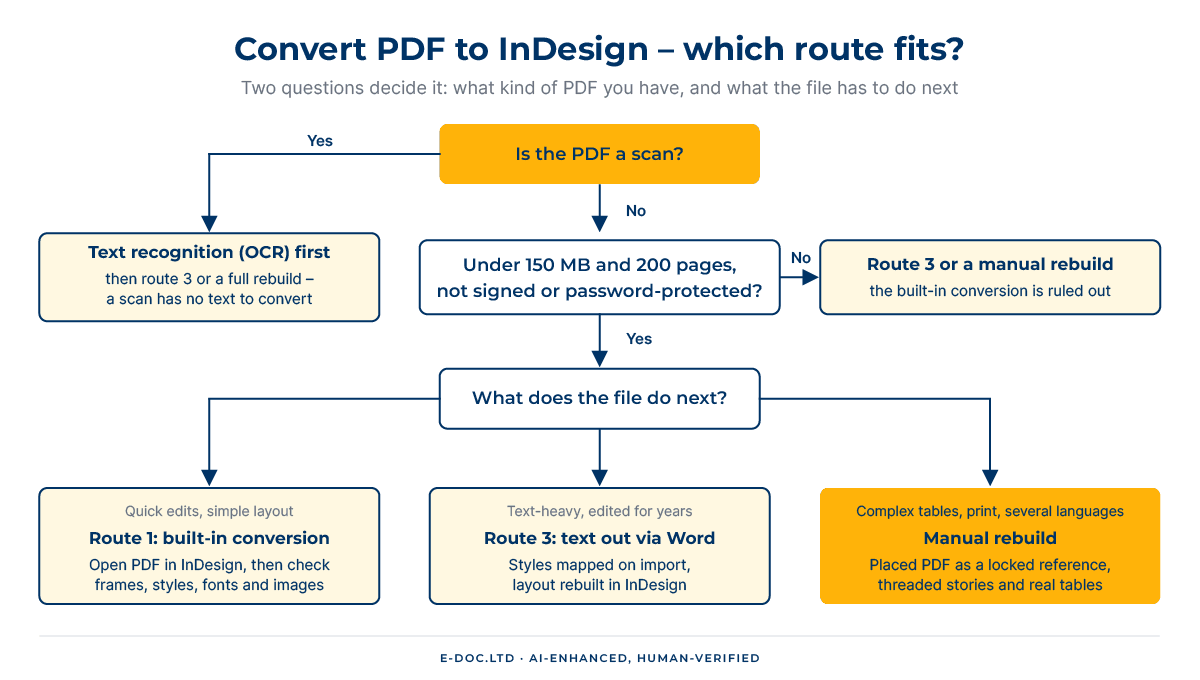
The right way to convert PDF to InDesign depends on two questions: what kind of PDF you have, and what the file has to do next.
- Scanned PDF: text recognition first, then route 3 or a full rebuild.
- Digital PDF within the limits, simple layout: route 1, then the checklist below.
- Digital PDF outside the limits (too large, too long, signed or password-protected): route 3 or a manual rebuild – a password-protected file needs the password, and the owner’s permission, on any route.
- Text-heavy document that will be edited for years: route 3.
- Complex tables, print-ready output or several language versions: a manual rebuild over the placed PDF (route 2).
What to Check After Any Conversion
A converted file can look right on screen and still be hard to work with. Before anyone edits it, go through this list:
- Text frames. Does each paragraph sit in one frame, and do the frames thread in reading order? If the converter left a frame for every line or column, every later edit turns into manual repair.
- Styles. Open the Paragraph Styles panel. A handful of meaningful styles is a good sign; dozens of near-duplicates need cleaning up first.
- Tables. Are they real InDesign tables, or text with tabs and drawn lines? Only real tables survive edits and translation.
- Fonts. Check which fonts the file uses and whether any are missing or substituted. Install the originals if you have the licenses.
- Images. Check the effective resolution of every image in the Links panel, and replace low-resolution copies with the original files where you have them.
- Color. Compare spot colors and CMYK values with the print specification, and look for RGB images in a document that is going to print.
- Language. Check the language assigned to the text in the Character panel – hyphenation and spell checking follow it.
- Page setup. Check page size, margins and bleed. A PDF exported without bleed has none to recover, so backgrounds that run off the page need extending.
- Repeating items. Page numbers and running heads that arrived as ordinary text on each page will not update; delete them and recreate them on parent pages, with an automatic page number marker for the numbers.
If the File Is Going into Translation
A converted file that looks right can still fail in translation. Translation tools usually receive the layout as an IDML export and read the text story by story. If the conversion left one frame per line, the translators receive half-sentences as separate segments, and the translation comes back in pieces that no longer fit the frames. Before the export:
- merge broken paragraphs into threaded stories;
- turn fake tables into real tables;
- apply styles, so fitting each language becomes a style change rather than a frame-by-frame repair;
- leave room in frames, tables and labels – many languages run longer than English, as our guide to how much translated text grows shows.
Our guide to how IDML carries a layout through translation covers the round-trip, and the post-translation DTP workflow covers what happens when the languages come back. If you need the PDF rebuilt and every language version typeset, our DTP services cover both, working from your approved translation.
When DIY Stops Making Sense
A one-page flyer is a reasonable do-it-yourself job on any route. The work outgrows that when:
- The PDF is a scan. Text recognition, checking the recognized text and a full layout rebuild add up to far more than a quick fix.
- The file is outside the conversion limits. More than 200 pages or 150 MB, or a signed or password-protected PDF, rules out route 1.
- The layout is dense. Many tables, multi-column text and text over images multiply the manual repair after any conversion.
- Chinese, Japanese, Korean or Arabic text is involved. Asian and right-to-left text needs careful layout work on every route – see our guide to right-to-left layout.
- The result goes to print or into several languages. Print needs original-quality images and exact colors; translation needs clean stories. Both are rebuild work, not conversion work.
None of these thresholds makes DIY wrong. They mark the point where the rebuild, not the conversion, becomes the real job – and where it pays to plan it as one. Our introduction to what multilingual DTP involves shows how that work fits into a localization project.
Frequently Asked Questions
Can InDesign open a PDF?
Recent versions can. File > Open PDF, or dragging the PDF into InDesign, converts it into an editable document within the limits Adobe lists: an internet connection and Adobe sign-in, under 150 MB and up to 200 pages. File > Place with Place PDF inserts a page as an image instead.
Can I edit the text of a placed PDF in InDesign?
No. A placed PDF behaves like an image: you can crop and scale it, but not edit its text. To edit the content, convert the PDF (route 1) or rebuild the layout over the placed page.
Why does my converted file have a text frame for every line?
A PDF stores text as lines at fixed positions, not as threaded stories, so the converter has to reconstruct the paragraphs. When it gets that wrong, you get many small frames. Merge them into threaded frames before you edit or translate the file.
Can a scanned PDF be converted to InDesign?
Not as editable text – a scan is a picture of each page, with no live text to convert. Run text recognition first, check the recognized text against the scan, then rebuild the layout in InDesign. Our OCR service handles the recognition step for difficult scans.
Will the fonts and images match the original?
Only as far as you have them. Install the original fonts before converting, as Adobe recommends, and replace images with the original files where you can: a PDF made for screen or email may contain compressed copies that are too small for print.
Should I convert the PDF to InDesign or to Word?
Choose the format the next editors work in. If designers maintain the layout, convert PDF to InDesign. If the team edits in Office, a Word document rebuilt to match the layout serves them better – see our PDF to Word conversion service.
How long does a manual rebuild take?
It depends on the page count and the complexity of the layout – tables, columns and images take the most time. Send us the PDF, and we reply with a fixed quote and a clear timeline within one business day.
Whether you convert PDF to InDesign yourself or hand the job over, the built-in conversion has changed the starting point: for clean digital files, it is a real shortcut. What no converter can decide is how the file should be structured for the people who will edit, print or translate it next. Choose the route by the PDF you have and the job the file has to do – and when the answer is a rebuild, plan it as one.