The designers have finished the brochure in InDesign, the languages are settled, and the translation team replies with one question: can you send the IDML file? If the request sounds technical, the reason behind it is simple. Most translation tools cannot work inside an InDesign document, but they can work with its IDML version – and the way that file travels through translation and back decides whether the language editions arrive ready to print or full of overflowing text and missing fonts. This guide explains what an IDML file is, how the translation round-trip works step by step, and what to prepare so the layout survives the trip.
What Is an IDML File – and Why Translators Ask for It
IDML stands for InDesign Markup Language. Adobe describes it as an XML-based interchange format that preserves most of a document’s elements. An IDML file is a compressed package of structured files: the text stories sit in their own files, separate from the page spreads, the styles and the other document resources.
That separation is the whole point for translation. The regular InDesign document – the INDD file – is a proprietary working format built for InDesign, and translation tools cannot read it. An IDML file exposes the text in a structure that other software can read and write. A translation (CAT) tool extracts the stories, shows the translator the text segment by segment with translation memory and terminology, and writes the translated text back into the same structure. The layout itself never leaves the file, so when the translated version opens in InDesign, the frames, styles and placed images start where the designer left them.
Two more facts save time later:
- An IDML file carries no fonts and no linked images. It stores only references to them – names and file paths. Images embedded in the document are the exception: they travel inside the file. Without the fonts and linked images, the translated file opens with missing fonts and broken links.
- You export it from InDesign. To convert InDesign to IDML, choose File > Export and pick the IDML format. Export it from the final, approved version of the layout, and package the same version (File > Package) so the fonts and links travel with it (fonts activated from Adobe Fonts are not copied; the recipient activates them).
IDML also lets a newer InDesign document open in an older version of the program, but in localization its main job is the round-trip through translation. Our overview of which DTP file formats to send shows where IDML sits among the other layout formats.
The Translation Round-Trip, Step by Step
A typical localization project moves through the same stages, whatever the number of languages:
- Prepare the InDesign document. Clean styles, live text, enough room for longer languages – the checklist below covers it.
- Export the IDML file and package the document. The IDML goes to translation; the package (fonts and links) stays with whoever will lay out the language versions.
- Translate in the CAT tool. The tool extracts the text, the translators work in segments with translation memory, and the linguistic review happens there.
- Export the translated IDML. The CAT tool writes each language back into its own copy of the file.
- Open each translated file in InDesign with the original fonts and links in place, plus fonts for languages the original fonts do not cover.
- Fit and check the layout. Text fit, fonts, hyphenation language settings, tables, images with text – the stage where much of the work hides.
- Final review and delivery. A reviewer who reads the language checks the PDF, the DTP team corrects the layout, and each language version goes out as a print-ready PDF with its packaged InDesign files.
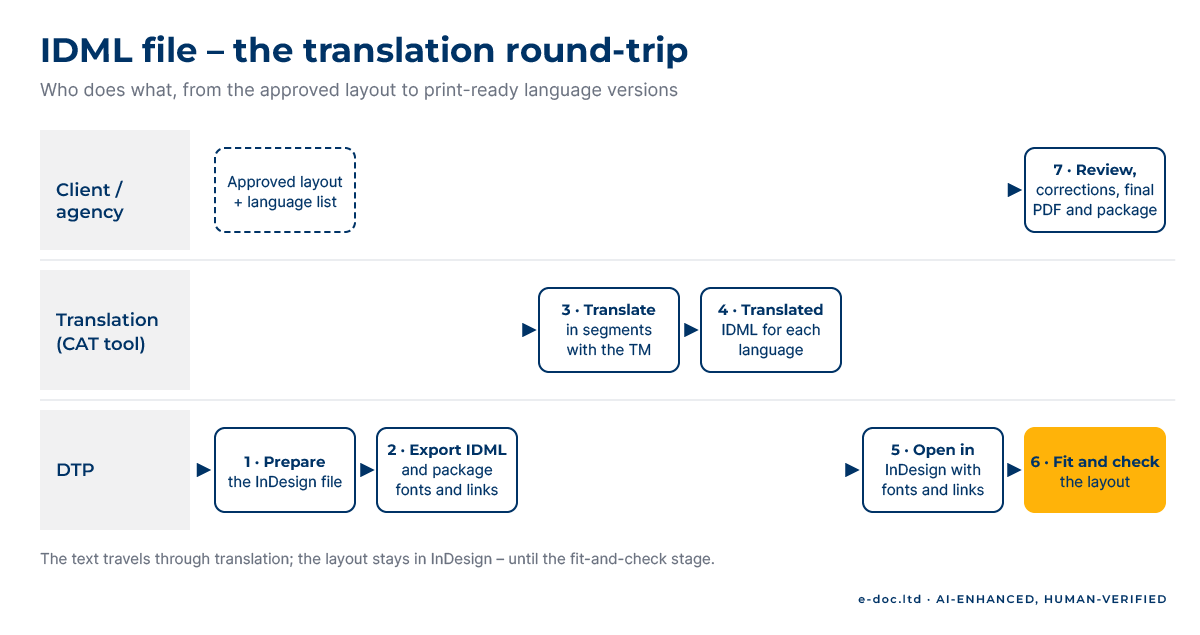
Steps 6 and 7 are the ones teams underestimate. The post-translation DTP workflow covers them in detail, and our introduction to what multilingual DTP involves sets out the wider picture.
What the Translation Tool May Miss
A CAT tool translates the live text it finds in the document’s text frames. Anything else stays in the source language unless someone catches it before translation starts:
- Text inside images. Screenshots, charts saved as pictures, photos with signs or labels. The tool sees an image, not words.
- Text converted to outlines. Headlines turned into shapes for a design effect are no longer text at all.
- Text inside placed files. Labels in a placed Illustrator graphic or PDF belong to that file, not to the InDesign document.
- Hidden or locked content. Hidden layers, notes, conditional text and items on the pasteboard – the tool may skip or extract them, depending on its settings. Either outcome can surprise you.
The fix is a short inventory before export: replace outlined text with live text where possible, list every image that contains words so it gets its own translation, unhide what the translators need to see, and delete what they should not receive.
InDesign files coming back from translation broken?
We prepare InDesign files for translation, take the translated IDML back and typeset every language version – text fit, fonts and layout checks – then return print-ready PDFs and packaged files. We work from your approved translation, white-label for agencies.
What Breaks When the Translation Comes Back
The translated file opens, and the problems are visible on almost every spread. These are the usual ones:
Overset text
Translations into many languages run longer than English, so text no longer fits the frame. InDesign marks overset text with a red plus sign in the frame’s out port, and the hidden words never reach the PDF unless someone fixes every frame. Our guide to how much translated text grows shows typical ranges by language.
Fonts and missing characters
The brand font that covers English and German may have no Cyrillic, Greek or Vietnamese characters at all, let alone Arabic or Chinese. InDesign flags missing fonts when the file opens, and characters a font does not contain cannot display correctly. Each language version needs a font that covers its characters and still fits the design.
Right-to-left languages
Arabic and Hebrew versions need right-to-left paragraph direction and the appropriate text composer at layout level, and often mirrored layout decisions – the subject of our guide to right-to-left layout.
Line breaks and hyphenation
InDesign hyphenates according to the language assigned to the text – usually through paragraph or character styles, although local overrides can still win. A translated paragraph still tagged as English gets English hyphenation rules. Assigning the target language to the styles of each version is a layout step, and it removes a common cause of awkward breaks.
Tables, labels and fixed-width elements
Table headers, callouts, buttons and diagram labels have no room to grow. They need individual attention in every language, and sometimes a change to the design itself.
How to Prepare an InDesign File for Translation
Most of the problems above are cheaper to prevent than to repair. Before exporting the IDML file:
- Use paragraph and character styles, not manual formatting – changes across every language version then go much faster.
- Thread text frames so longer text can flow instead of being cut off.
- Keep text live: no outlined headlines, and as little text inside images as the design allows.
- Leave room for expansion in frames, tables and labels.
- Clean the document: remove unused hidden layers, old notes and pasteboard leftovers; unlock what needs translating.
- Check font coverage early for every target language, before the translation comes back.
- Freeze the source: export the IDML file and the package from the same final version, and make no further edits to the source layout during translation.
When to Hand It Over
An in-house designer can manage one or two language versions of a short document. The work outgrows that setup when:
- The language list is long. A long catalog in many languages means a round of fitting and checking for every language.
- Right-to-left or Asian languages are on the list. Fonts, direction and composer settings add layout work that the source language never needed.
- Print or launch dates fix the deadline. Layout fixing comes last, so every earlier delay eats into its time.
- The last round came back broken. If overset text and missing fonts reached the client once, the process needs an owner.
For agencies, the practical answer is a DTP team that slots into the existing workflow – see how we handle white-label DTP for translation agencies.
Frequently Asked Questions
What is an IDML file?
An IDML file is the InDesign Markup Language version of an InDesign document – an XML-based package that keeps the text, layout, styles and references in a structure other software can read. Translation tools use it to extract and replace the text without touching the layout.
What is the difference between INDD and IDML?
INDD is InDesign’s proprietary working format, made to be opened and edited in InDesign. IDML is an interchange format exported from it: translation tools can read and write it, and an older version of InDesign can open it. For translation, you send the IDML; for layout work, the packaged INDD with fonts and links.
How do I open an IDML file?
In InDesign, open it like any document, then save it as a native InDesign (INDD) file. Translation tools import it directly, and some other layout programs can import it, with varying results.
Does an IDML file include fonts and linked images?
It never contains fonts. It references linked images by file path but does not contain them; only images embedded in the InDesign document travel inside the IDML. Send the IDML for translation and keep the packaged InDesign document – with its fonts and links – for the layout stage.
Can CAT tools translate InDesign files directly?
Translation tools such as Trados work with the IDML version rather than the INDD file. They extract the live text, the translators work in segments with translation memory, and the tool writes the translation back into a translated IDML for each language.
Why does translated text not fit the layout?
Many languages need more space than English, and some need different fonts or text direction. The designer built the layout around the source text, so each language version needs fitting – frames, styles, tables and labels – before it is ready to print.
Who checks the translated layout?
Two checks, two roles. The layout check – text fit, fonts, hyphenation settings, images – belongs to whoever does the DTP. The language check of the final PDF belongs to a reviewer who reads the language, usually the translator or the client’s editor. We work from your approved translation and leave the linguistic sign-off with your reviewers.
An IDML file is the bridge that lets an InDesign layout go through translation without the translators ever opening InDesign. The bridge works best when you prepare the document before export, the fonts and links travel with it, and someone owns the fit-and-check stage when the languages come back. Plan those three things, and each language version arrives ready to print rather than ready to fix.