You have a folder of scanned PDFs – old contracts, records, research papers, archive documents – and they behave like photographs. You cannot search them, cannot copy a line, cannot pull one file out of a thousand by a keyword. To fix that, you need to make PDF searchable: add an invisible text layer that turns those page images into something a computer can read. This guide explains exactly what a searchable PDF is, why it matters, the practical ways to make a PDF searchable, and when a large or important archive is better handled by a professional.
What a Searchable PDF Actually Is
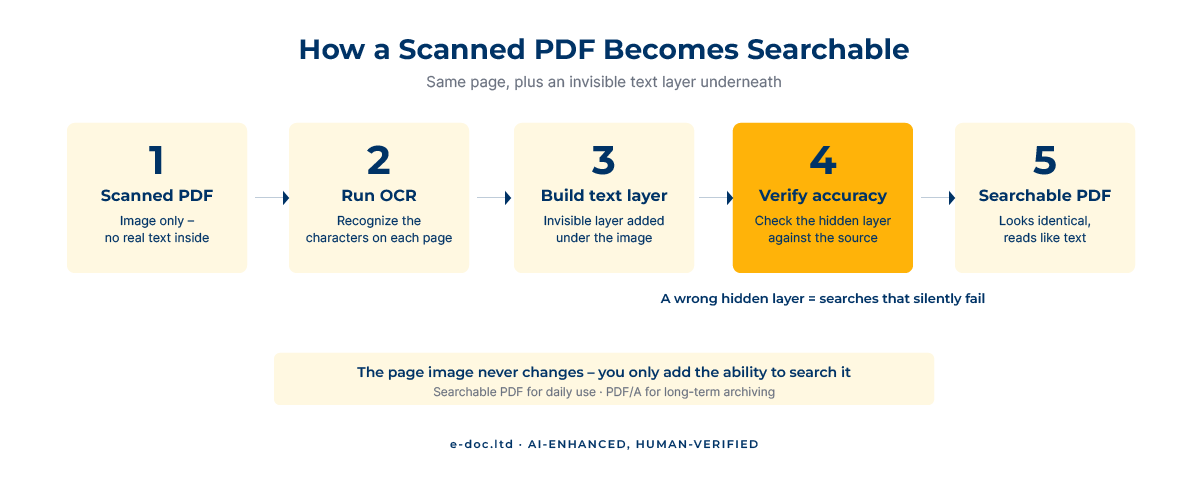
A scanned PDF is a picture of a page. Open one and it looks like a document, but to your computer it is just an image – there is no text inside it, only pixels. That is why Ctrl+F finds nothing and you cannot select a word. A searchable PDF fixes this without changing how the document looks: OCR reads the page image, recognizes the characters, and adds them as an invisible text layer sitting exactly under the visible image. The page looks identical to the original scan, but now the text underneath is fully searchable, selectable, and indexable. This invisible layer is what our guide to the OCR text layer explained describes in detail. The key point: you keep the exact document, and simply add the ability to search it.
Why You Would Want a Searchable PDF
Choosing to make PDF searchable is not cosmetic – it unlocks things a scanned image cannot do:
- Full-text search. Find a name, a clause, or a figure across hundreds of documents in seconds instead of opening each one.
- Indexing. Document management systems can catalog and retrieve searchable PDFs by content, not just filename.
- Copy and paste. Pull a quote or a paragraph out without retyping it.
- Accessibility. Screen readers can read a searchable PDF aloud; they cannot read a flat image, which matters for compliance and inclusion.
- Long-term archiving. Searchable PDF (and its archival cousin PDF/A) is the standard format for digitized records that must stay usable for years.
For anyone digitizing an archive – legal, medical, corporate, or research – making PDFs searchable is the step that turns a pile of scans into a usable library.
How to Make a PDF Searchable – Four Methods
1. Adobe Acrobat Pro (the standard desktop route)
Acrobat Pro has a built-in “Scan & OCR” tool: open the scanned PDF, choose “Recognize Text”, and Acrobat adds the searchable text layer in place. It is reliable, keeps the original image, and handles many languages. The catch is cost – Acrobat Pro is a paid subscription – and, on large batches, the time and the manual checking still fall on you.
2. Free tools (with the usual caveats)
Some PDF readers and several online services will OCR a PDF and return a searchable version for free. They are fine for a handful of clean documents, but two cautions apply: never upload confidential files to an anonymous online service, and check the result, because a free tool that produces a poor text layer gives you a false sense of searchability – the file looks searchable but quietly misses words.
3. Built-in and OS tools
Depending on your setup, document management platforms, scanner software, and some operating-system tools can produce searchable PDFs at scan time. If you are digitizing documents yourself, enabling OCR during scanning is often the simplest way to make PDF searchable in bulk – the searchable layer is built as each page comes in.
4. A professional service (for archives, accuracy, and languages)
When the job is an archive rather than a document – hundreds or thousands of pages, mixed scan quality, non-Latin languages, or records where search has to be reliable – a professional pipeline pairs recognition engines with human verification. That is the work we do: we build an accurate text layer, check it against the source, and deliver searchable PDFs (or PDF/A for archiving) across 50+ languages. For a legal or records archive, the difference between “roughly searchable” and “reliably searchable” is the whole point.
The Trap No One Warns You About: A Wrong Text Layer
Here is the risk that makes searchable PDFs different from other conversions. When you convert a scan to Word and the OCR makes mistakes, you see them – the errors are right there in the editable text. When you make a PDF searchable, the text layer is invisible. If it is full of recognition errors, the document still looks perfect, but your searches silently fail: you search for a name that is in the document, and the search returns nothing, because the invisible layer recorded it wrong.
This is why accuracy matters more here than almost anywhere else. A searchable PDF you cannot trust is worse than a plain scan, because it gives false confidence. On clean, English documents, modern OCR is good enough that this rarely bites. On degraded scans, historical records, or non-Latin languages, an unverified text layer will quietly let things slip through – which is exactly where human verification earns its place.
Digitizing an archive that has to be reliably searchable?
We turn scanned documents into accurate, searchable PDFs and PDF/A archives across 50+ languages – with the text layer verified against the source, so your searches actually find what is there.
Searchable PDF or Convert to Word?
A quick decision, because people often confuse the two goals:
- Make it searchable when you want to keep the document exactly as it is – the same pages, the same look – and simply add search, indexing, and accessibility. This is the archive case.
- Convert to Word when you actually need to edit the content – rewrite it, restructure it, reuse the text elsewhere. If that is your goal, convert the scan to editable Word instead, which is a different job with different trade-offs around formatting.
Both start with the same OCR step. The difference is what you want at the end: a faithful, searchable copy, or an editable rewrite.
When DIY Stops Making Sense
For a few clean, English documents, a desktop or free tool can make PDF searchable output in minutes. The thresholds that change the picture:
- Volume. One document is quick. A thousand-page archive is a project – running, checking, and organizing every file.
- Mixed or poor scan quality. Old, faded, or skewed scans push accuracy down and checking time up.
- Non-Latin languages. Cyrillic, Arabic, and CJK need the right language configuration and, ideally, someone who can confirm the text layer is right.
- Search reliability matters. Legal discovery, medical records, compliance archives – anywhere a missed search result has consequences, the text layer has to be verified, not assumed.
- Archival standards. If you need PDF/A for long-term preservation, that is a specific output worth getting right the first time.
Below those thresholds, do it yourself and move on. Above them, an unverified text layer is a liability hiding in plain sight – and a professional pipeline is the safer call.
Frequently Asked Questions
What does it mean to make a PDF searchable?
It means adding an invisible OCR text layer under the scanned page image. The document looks exactly the same, but the text underneath becomes searchable, selectable, and readable by software – so you can use Ctrl+F, copy text, and index the file by its content.
Can I make a PDF searchable for free?
Yes, for a few documents. Some PDF readers and online OCR services add a searchable layer at no cost, and enabling OCR in your scanner software works too. Check the results, and never upload confidential files to anonymous online tools. For large or important archives, accuracy and verification usually justify a professional service.
Does making a PDF searchable change how it looks?
No. That is the whole point. The original page image stays exactly as it was; OCR adds an invisible text layer underneath. The document looks identical to the scan but now behaves like text for search, copying, and indexing.
What is the difference between a searchable PDF and PDF/A?
A searchable PDF has an OCR text layer for search and selection. PDF/A is an archival standard that also embeds fonts and restricts features so the file stays reliably readable for decades. Archives often want both: searchable text in a PDF/A container for long-term preservation.
Why does my searchable PDF miss words when I search?
Because the invisible text layer contains recognition errors. The page looks perfect, but if OCR misread a word, searching for it returns nothing. This is common on degraded scans and non-Latin text, and it is why an accurate, verified text layer matters more for searchable PDFs than for most conversions.
Should I make my scan searchable or convert it to Word?
Make it searchable if you want to keep the document as it is and just add search, indexing, and accessibility – the archive case. Convert it to Word if you need to edit the content. Both use OCR; they differ only in what you want at the end.
So, to make PDF searchable, OCR builds an invisible text layer under the page image – the document looks the same, but finally reads like text. For a few clean documents, a desktop or free tool does it in minutes. For an archive, mixed-quality scans, non-Latin languages, or records where a search has to find what is actually there, the recognition is the easy part – the verification is what makes the searchable PDF trustworthy. That is exactly where machine speed plus human checking earns its keep.