You have text stuck inside an image – a photographed sign, a screenshot, a scanned page, a diagram with a caption you need – and you want to extract text from image files without retyping it. The good news: in 2026 there are more ways to do this than ever, several of them free and instant. The catch: they are not equally good, and the right one depends on your situation. This guide walks through five real methods to extract text from an image, shows what each is best at and where it falls down, and gives you a simple decision tree to pick the right one for your case.
How It Works – One Technology Behind Every Method
Every method below relies on the same underlying technology: OCR, optical character recognition. An image – to a computer – is just a grid of colored dots, with nothing marking which shapes are letters. OCR analyzes the picture, finds the shapes that look like characters, and turns them into real, selectable text. The five methods differ only in where that OCR runs (on your phone, in the cloud, on your desktop) and how much human care surrounds it. If you want the full mechanics, our guide to how OCR turns images into text explains the pipeline stage by stage. For now, the practical question is simply: which method fits your case?
Five Ways to Extract Text from an Image
1. Your phone, built in (the fastest grab)
Modern phones do OCR on-device, instantly. On iPhone, Live Text lets you long-press text in any photo and copy it. On Android, Google Lens does the same from the camera or gallery. For a single quick grab – a phone number on a poster, a paragraph from a book, a Wi-Fi password – nothing beats it. It is free, private (the recognition happens on the device), and takes seconds. The limit: it is built for grabs, not for processing many pages or preserving layout.
2. Google Lens or Google Drive (cross-device, many languages)
Google Lens works across devices – point your phone camera at text, or upload a saved image on any platform – and handles a wide range of languages well, often better than a phone’s own built-in tool for less common scripts. Google Drive goes further: upload an image, right-click it and choose “Open with Google Docs,” and Drive runs OCR into a fully editable document rather than just a clipboard snippet. It is a strong free way to extract text from image files when you need the words in a document, or when the image is in a language your phone struggles with. As always, layout mostly does not survive – you get the words, not the design.
3. Desktop tools (already on your computer)
Microsoft OneNote has a “Copy Text from Picture” option that returns recognized text to your clipboard. Windows 11’s Snipping Tool goes a step further with a built-in Text Extractor: select any part of the screen and it copies the recognized text directly, no separate screenshot or app-switching required. On a Mac, Preview and Quick Look let you select and copy text straight out of an image the same way you would select text on a webpage. These are convenient when you are already working at a desktop and want to pull text from a screenshot into a document you are writing, and none of them need an internet connection. Speed and privacy are good; language coverage and accuracy vary by tool, and – like the phone methods above – they handle one image at a time.
4. Free online OCR sites (quick, with caveats)
Dozens of websites let you upload an image and get text back. They are handy when you have no better tool to hand, but three cautions matter. First, never upload confidential or personal documents to an anonymous free service – you have no visibility into how long the file is kept or who can see it. Second, expect to proofread everything, because free tools rarely flag their own errors. Third, most free tiers cap the file size, the number of pages per upload, or how many conversions you get per day, which turns a batch of images into a repetitive, interrupted task. Quality drops sharply on photos, non-English text, and anything but clean input.
5. A professional service (volume, accuracy, languages)
When the job is bigger than a grab – many images, a language you cannot proofread, content where an error has consequences, or output that must keep its formatting – a professional pipeline pairs recognition engines with human verification. That is the work we do: machine speed to read, trained human eyes to catch the errors that remain, across 50+ languages. You send the images and tell us what you need – a clean Word document, a spreadsheet of extracted fields, or plain text – and get back files that are ready to use, not raw output you still have to fix. It is the difference between “the text is roughly there” and “this is checked and reliable”.
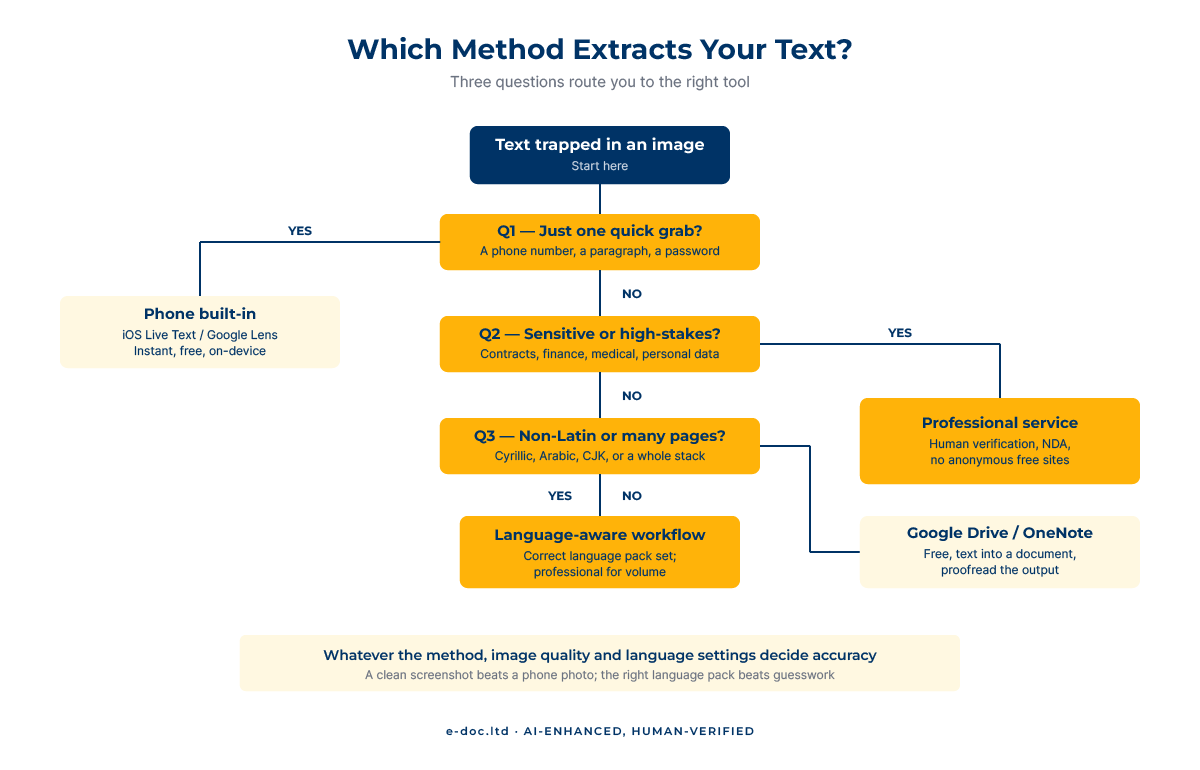
Which Method Should You Actually Use?
The right choice comes down to three questions. Answer them in order:
- Is this a single quick grab? If you just need a phone number, a short paragraph, or a password out of one image, use your phone’s built-in tool or a desktop screenshot reader. Do not overthink it.
- Is the content sensitive or high-stakes? Contracts, financial figures, medical or legal text, personal data – anywhere an error or a leak has consequences. Skip anonymous free sites entirely, and if accuracy has to be guaranteed, use a service with human verification.
- Is it non-Latin, multilingual, or many pages? Ukrainian, Russian, Arabic, CJK, or a stack of images. Free consumer tools often misread non-Latin scripts, and volume turns a two-minute job into hours of checking. This is where a language-aware professional workflow earns its place.
Most everyday cases stop at the first question – and that is fine. The methods matter most when the answers to the second and third push you toward accuracy and scale.
What Every Method Gets Wrong (and Why)
Whichever route you take, the same three factors decide your result – and knowing them saves a lot of frustration:
- Image quality. A crisp screenshot converts almost perfectly; an angled, low-light photo makes any engine guess. Before blaming the tool, look at the image – re-shooting straight-on in good light often fixes everything.
- Language settings. An engine set to English will mangle Cyrillic or Arabic text. When you extract text from image sources in another language, make sure the tool is set to the right one.
- Layout. OCR recovers words, not design. Columns, tables, and precise formatting rarely survive automatically and need manual rebuilding – which, for editable output, is closer to converting a JPG straight to a Word document properly.
- One image at a time. Your phone, Google Lens, desktop tools, and most free websites all process a single image per action. Extracting text from ten images means repeating the same steps ten times – there is no batch button.
Have images full of text that need to become accurate, usable documents?
We extract text from images, scans, and photos and deliver clean, verified files across 50+ languages – with human proofreading against the source, not just raw OCR output.
When DIY Stops Making Sense
The free methods genuinely cover the everyday case: one image, a major language, low stakes. The thresholds that change the picture:
- Volume. One grab is instant. Two hundred images is two hundred jobs to run, clean, and check.
- Degraded sources. Old photos, faded print, low light, folds – accuracy drops and cleanup time multiplies.
- Non-Latin or mixed scripts. If you cannot proofread the language, every error is invisible to you and obvious to your reader.
- Formatting that must survive. When the output has to match the original layout, rebuilding the design is the real work.
- Stakes and privacy. Confidential or consequential content should never touch an anonymous free tool.
Below those thresholds, grab it with your phone and move on. Above them, the mathematics of your time – and the cost of a missed error or a leaked document – favor a professional pipeline.
Frequently Asked Questions
What is the fastest way to extract text from an image?
Your phone. On iPhone, long-press text in a photo with Live Text and copy it; on Android, use Google Lens from the camera or gallery. Both run on-device, work in seconds, and are free – ideal for a single quick grab.
Can I extract text from an image for free?
Yes. Phone built-in tools, Google Lens, Google Drive, and Microsoft OneNote all extract text from images at no cost, and many websites offer free OCR. They work well on clean images; on photos and non-English text, plan to proofread. Avoid uploading confidential files to anonymous online tools.
Why is the extracted text full of mistakes?
Almost always the image or the language setting. Low resolution, poor light, skew, and folds all push OCR into guessing, and an engine set to the wrong language will corrupt non-Latin text. Start with the cleanest possible image and confirm the correct language before recognition.
Can OCR extract text from a handwritten image?
Printed text extracts well. Neat hand-printed block letters are workable, but cursive handwriting remains difficult even for current AI models. For handwritten images, expect to correct a meaningful share of the output by hand.
Is it safe to use free online tools to extract text from an image?
For casual, non-sensitive images, yes. For anything confidential – contracts, personal data, financial or medical documents – no. You cannot control what an anonymous free service does with an uploaded file, so keep sensitive content on-device or with a provider bound by a confidentiality agreement.
How do I extract text from an image in another language?
Use a tool that supports the language and set it correctly before recognition. Professional engines cover well over a hundred languages, including full Cyrillic, CJK, and Arabic. The most common failure is leaving the language on English, which turns non-Latin text into nonsense.
So, to extract text from an image, the technology is always the same – OCR – but the right method is not. For a quick grab, your phone is unbeatable and free. For a document in a major language, Google Drive or OneNote does the job. And when the images pile up, the language is one you cannot check, or the content is too important for silent errors, the recognition is the easy part – the verification is what makes the result trustworthy. That is exactly where machine speed plus human checking earns its keep.