You have a JPG – a phone photo of a printed page, a screenshot, an image someone emailed you – and you need it as text you can edit in Word. So how do you convert JPG to Word without retyping the whole thing? The short answer: the image has to pass through OCR (optical character recognition), because a JPG is just pixels, and Word needs real characters. This guide walks through the practical ways to convert a JPG to Word, ranks them honestly by the result you can expect, and is clear about the one thing that decides everything – the quality of the image you start with.
Why You Cannot Just Open a JPG in Word
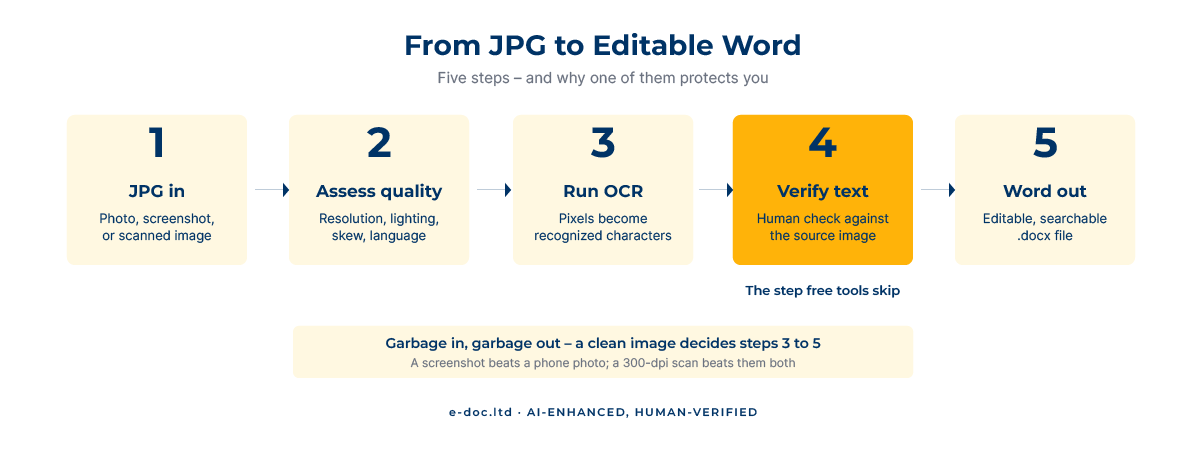
Drop a JPG into a Word document and you get exactly that: a picture sitting on the page. You can resize it and move it, but you cannot select a single word, edit a sentence, or run a spellcheck – because to Word, that image is one flat graphic, not text. Nothing in the file says “this shape is the letter A”. Converting JPG to Word really means one thing: running the image through OCR so the shapes that look like characters become actual, editable characters. Everything in this guide is a different route to that same step. If you want the full picture of how that recognition works under the hood, our guide to how OCR actually works breaks it down stage by stage.
How to Convert JPG to Word – Four Practical Methods
There is no single “convert JPG to Word” button that works for every case. Here are the four routes that actually do the job, from quickest to most reliable:
1. Google Docs (free, surprisingly good)
Upload the JPG to Google Drive, right-click it, and choose “Open with → Google Docs”. Google runs OCR on the image and drops the recognized text into a new document, with the original image on top. Delete the image, clean up the text, and download as Word (.docx). Google’s official guide lists the input requirements – files under 2 MB, text at least 10 pixels high. It handles many languages and copes well with clean images. The catch: layout mostly does not survive – you get the words, not the columns, tables, or styling.
2. Microsoft OneNote (free, already on many PCs)
Paste or insert the JPG into a OneNote page, right-click it, and choose “Copy Text from Picture”. OneNote returns the recognized text to your clipboard, ready to paste into Word. It is fast for short passages and works offline once installed. Like Google Docs, it extracts text but not layout.
3. A free online JPG-to-Word converter
Plenty of websites offer image-to-Word conversion: upload the JPG, wait, download a .docx. Quality varies enormously between tools, and results drop fast on anything but clean input. Two real cautions: never upload confidential documents to an anonymous free site, and expect to proofread every line, because free tools rarely flag their own mistakes.
4. A professional service (for volume, accuracy, or layout)
When the document matters – many pages, a language you cannot proofread, tables and formatting that must survive, or content where an error has consequences – a professional pipeline pairs recognition engines with human verification. That is exactly the work we do, and it is the difference between “the words are roughly there” and “this is a faithful, checked Word document”.
The One Thing That Decides Your Result: Image Quality
Every method above gives wildly different results depending on the JPG you feed it. Recognition quality follows a clear ladder, best to worst:
- Screenshot of digital text. The characters are already crisp and perfectly aligned, so OCR is nearly flawless. This is the easy case where free tools shine.
- A flatbed scan saved as JPG. Even lighting, straight page, high resolution – almost as good as a screenshot.
- A straight-on phone photo in good light. Workable, but shadows, slight blur, and compression start costing you accuracy.
- An angled or low-light phone photo. Perspective distortion, uneven light, and folds push any engine into guessing. This is where results fall apart.
The practical takeaway: before you blame the converter, look at the image. Re-shooting a page straight-on, in even light, flat on a table, often turns an unusable result into a clean one. If you can produce a proper 300-dpi scan instead of a photo, do it – it beats even the best phone shot.
What Survives the Conversion – and What Does Not
Setting expectations honestly saves a lot of frustration. Here is what typically makes it from JPG to Word, and what usually does not:
- Usually survives: plain paragraphs of body text, in the right reading order, on a clean image.
- Sometimes survives: simple single-column layout, basic bold and italic, straightforward lists.
- Usually does not survive: multi-column layouts, complex tables, precise fonts and spacing, text wrapped around images, headers and footers. These need manual rebuilding afterward.
This is why a photo of a beautifully formatted brochure comes out as a wall of plain text: the words are recognized, but the design is not. When you convert JPG to Word, expect the text to survive and the design to need rebuilding. If your goal is editable words, free tools are fine. If your goal is a Word file that looks like the original, that is reconstruction work – closer to converting scanned PDFs to Word properly, where layout has to be rebuilt by hand.
A Note on Language – Why Non-English JPGs Break Free Tools
If your JPG is in Ukrainian, Russian, Arabic, or any non-Latin script, method choice matters even more. Recognition leans on language settings to resolve ambiguous characters – so an engine set to English will mangle Cyrillic or CJK text, turning real words into nonsense. Free consumer tools often auto-detect language reasonably well on clean images but fail on mixed-script documents (a contract in Ukrainian quoting English clauses, for example). Getting multilingual JPGs into clean Word text reliably is one of the areas where a professional, language-aware workflow earns its place.
Have images that need to become accurate, editable Word documents?
We convert JPGs, scans, and photos into clean, verified Word files across 50+ languages – with human proofreading against the source, not just raw OCR output.
When DIY Stops Making Sense
The free methods genuinely cover the everyday case: a clean screenshot, a page or two, a major language, stakes low enough that a stray typo costs nothing. The thresholds that change the picture:
- Volume. One screenshot is a two-minute job. Two hundred photographed pages is two hundred pages someone has to run, clean, and check.
- Degraded images. Old photos, low light, folds, faded print – accuracy drops and cleanup time multiplies.
- Non-Latin or mixed scripts. If you cannot proofread the language yourself, every recognition error is invisible to you and obvious to your reader.
- Formatting that must survive. When the Word file has to match the original – tables, columns, styling intact – rebuilding the layout is the real work, not the OCR.
- Stakes. Contracts, financial figures, medical or legal content – anywhere a transposed digit matters, unverified output is a liability.
Below those thresholds, use Google Docs or OneNote and move on. Above them, the mathematics of your time – and the cost of a missed error – favor a professional pipeline.
Frequently Asked Questions
Can I convert a JPG to Word for free?
Yes. Google Docs and Microsoft OneNote both extract text from images at no cost, and several free websites offer JPG-to-Word conversion. They work well on clean images; on photos and non-English text, expect to proofread carefully. Avoid uploading confidential files to anonymous online tools.
Why does my converted Word document lose its formatting?
OCR recognizes characters, not design. It reliably recovers the words and their reading order, but complex layouts – columns, tables, precise fonts, wrapped text – rarely survive automatically. Rebuilding the visual layout to match the original is a separate, manual step.
How do I get the best accuracy from a JPG?
Start with the best possible image. A screenshot of digital text or a straight 300-dpi scan gives near-perfect results. If you must photograph a page, shoot straight-on, in even light, with the page flat – and make sure the language of the document is set correctly in your OCR tool.
Can OCR read handwriting in a JPG?
Printed text converts well. Neat hand-printed block letters are workable with intelligent character recognition, but cursive handwriting remains difficult even for current AI models. For handwritten JPGs, expect to correct a significant share of the output manually.
Is converting a JPG to Word the same as OCR?
OCR is the engine; JPG-to-Word conversion is one job it performs. Converting a JPG to Word always requires OCR, because the image contains no real text – only pixels that OCR turns into editable characters.
Can I convert a JPG in another language, like Ukrainian or Arabic, to Word?
Yes, if the tool supports that language and you configure it correctly. Professional engines cover well over a hundred languages, including full Cyrillic, CJK, and Arabic. The common failure is leaving the language set to English, which corrupts non-Latin text – so always select the correct language before recognition.
So, converting a JPG to Word comes down to two things: run the image through OCR, and start with the best image you can. For a clean screenshot in a major language, a free tool gets you there in minutes. For photographed pages, degraded scans, non-Latin scripts, or documents where the formatting and the figures have to be right, the recognition is the easy part – the verification is what makes the Word file trustworthy. That is exactly where machine speed plus human checking earns its keep.