You converted a 30-page report from PDF to Word, opened the result, and it looked nothing like the original. Tables collapsed into prose. The font changed to Calibri, where it used to be a custom serif. Two-column layout merged into a long, messy single column. Headers vanished. You searched for how to convert PDF to Word without losing formatting and found ten articles all telling you the same thing: “Use a better tool.”
That advice is incomplete. Formatting loss is not a single problem with a single solution. There are at least seven different problems, each with a specific cause and a specific fix. Picking the right fix takes five seconds of diagnosis, not the download of yet another converter.
We handle PDF-to-Word conversion every day for translation agencies, corporate teams, and research groups whose documents need to go out clean the first time. This guide reflects what we actually do when a client sends us a converted Word file with broken formatting and asks why. If your PDF is scanned rather than digital, the rules differ – see our guide to scanned PDF conversion. For the wider PDF-to-Word picture, see the main PDF-to-Word guide. Here we focus on the digital case, where the file has selectable text, and the formatting still goes wrong.
The Real Reason PDF-to-Word Loses Formatting
PDF and Word target opposite jobs. PDF freezes a layout: every glyph, line, and image holds a fixed coordinate on a fixed page. Open it on a phone, a printer, or a 27-inch monitor, and the layout never moves. Word does the opposite. It treats text as a flow that adapts to the page size, the font metrics, and the user’s edits. Headings, paragraphs, and lists carry semantic meaning, not pixel positions.
When a converter reads a PDF and writes a .docx file, it inverts the model. It starts from a frozen layout and tries to infer the structure (paragraphs, tables, columns, headings) that produced it. This inference is hard, and it fails in predictable ways. Microsoft’s own forum guidance puts it bluntly: there is no 1:1 correspondence between how PDF and Word handle structure. No tool eliminates the problem; the better tools shrink it.
Realistic expectations help here. The goal of converting PDF to Word without losing formatting is rarely 100% fidelity; the realistic ceiling depends on the source. A clean digital PDF with simple body text and a single column converts at near-perfect fidelity in any decent tool. A PDF built in InDesign with custom fonts, multi-column flows, sidebars, and complex tables loses 15–30% of its formatting on every conversion, regardless of the tool. A scanned PDF processed through OCR adds another layer of error before formatting even comes into question. Knowing which case you have is the first decision.
First, Diagnose Your PDF
The same complaint (“the formatting is broken”) covers three completely different files. Before you reach for any tool, identify which one you have.
The simple digital PDF
Single column, one or two fonts, no tables more complex than a basic grid, mostly body text. You can drag-select any word with your cursor. Conversion succeeds in almost any tool, including Word’s built-in PDF import. If formatting still looks broken on this kind of file, the converter has a bug or the original PDF embeds something unusual (a private font, an unusual color profile). Try a different tool first; the problem usually disappears.
The complex digital PDF
Multi-column layouts, sidebars, callout boxes, embedded charts, tables with merged cells, header and footer flows, page numbers in elaborate positions. You can still select text. This is the hard case. The text comes through; the layout does not. Most of the rest of this guide addresses this category.
The scanned PDF
Selecting text returns nothing or returns garbage. The file wraps images of pages, not text data. Standard converters do nothing useful here. You need OCR before any conversion, and OCR adds its own family of errors. We covered this in detail in our scanned PDF to Word guide; the rest of this article assumes you have a digital PDF.
The two-minute triage. Drag-select a word. Nothing highlights, you have a scan; switch to the OCR workflow. Text highlights and the layout looks like prose with a basic grid, you have a simple digital PDF; almost any converter will work. Text highlights, but the layout has columns, sidebars, complex tables, or recurring headers, you have a complex digital PDF; the rest of this guide is for you.
Seven Formatting Failures and How to Spot Each
Working through hundreds of conversions a year, we keep seeing the same seven failure modes. Each one has a distinct visual signature. Recognize the signature, and the fix arrives much faster.
1. Font substitution
The original PDF used Garamond Pro or a custom corporate font. The converter could not find the font on your system, so it substituted Calibri or Times New Roman. Body text looks plausible but slightly wrong; headings look very wrong; line breaks shift because the new font has different metrics. The signature: the document feels generic. The cause: missing or non-embedded fonts. Tables and layout often shift secondarily because the substituted font occupies different widths.
2. Tables collapsed into plain text
Where the PDF had a clean grid, you now see lines of text separated by tabs or by nothing. Cells run together. Column boundaries vanish. The cause: the PDF did not store the table as a structured object; it drew lines and placed text between them, and the converter could not infer the grid back. Simple bordered tables survive most converters; merged cells, spanning headers, and borderless tables do not.
3. Multi-column layout merged
A two-column or three-column page becomes a single column, often with text from column two appearing inside column one mid-paragraph. The cause: the converter read the page top-to-bottom in raw position order rather than following the column flow. Common in newsletters, academic papers, and brochure-style PDFs.
4. Images shifted, missing, or oversized
Images anchored to a paragraph in the PDF now float in the wrong place, jump pages, or vanish. Vector graphics rasterize at low resolution. The cause: PDFs anchor images to coordinates; Word anchors them to paragraphs or pages, and the converter has to choose which to keep. It often chooses wrong.
5. Headers, footers, and page numbers gone
The PDF had a recurring header on every page; in Word, it has gone missing, or it appears once at the top of the document and never again. Page numbers reset, vanish, or render as plain text. The cause: PDF page elements live outside the body flow; Word represents them as section properties. Converters frequently skip the conversion entirely or land them in the wrong section.
6. Bullet lists became plain paragraphs
Where the PDF had a clean bulleted or numbered list, the Word document now shows paragraphs prefixed with literal bullet characters or numbers, with no list structure underneath. Indentation is wrong. Re-numbering does not work. The cause: the converter recognized the visual but not the semantic structure. Word treats them as ordinary text.
7. Hyperlinks turned into dead text
Clickable links in the PDF appear as styled text in Word that does nothing when clicked. The cause: PDF links are annotations attached to text regions; Word links are inline hyperlink fields. Most converters preserve the visual styling and lose the link target.
If you recognize more than two of these in the same document, the underlying PDF qualifies as complex, and you will not fix all of them by switching tools.
Recognize more than two of these in your converted Word file?
Our team handles digital PDF-to-Word conversion with layout preservation, table reconstruction, and post-conversion QA – not just an automated pass through a converter.
The Fix Path for Each Failure Type
Once you know which failures you have, the path to convert PDF to Word without losing formatting comes into focus. Three reasonable paths cover almost every situation, depending on how much is broken.
Quick fix in Word, 5–15 minutes
Use this when one or two failure types appear, and the document is short (under 20 pages). Open the converted .docx and work through Word’s tools. Install the missing font from the source if you can find it, then use Format Painter to propagate styles across runs. For broken tables, select and apply Table Tools – Layout – AutoFit. For lost hyperlinks, select the styled text and re-insert links manually using Insert – Hyperlink. For pseudo-bullet paragraphs, select each block and apply Word’s list style. This works when the underlying text is correct, and only the wrappers broke.
Workflow fix, 30–60 minutes
Use this when three or more failure types appear, or the document runs to medium length (20–80 pages). The Word file from a single conversion rarely justifies saving as-is. Re-convert with a different tool, compare the two outputs side by side, and merge the better parts. Adobe Acrobat tends to win on font fidelity and headers; Word’s built-in import wins on simple body flow; ABBYY FineReader wins on tables. Pick the tool that handled your hardest element best, then fix the lighter problems by hand.
Source-side preparation, when you control the original
This path goes unmentioned in most guides, and it works best of all. If you can edit the source document or ask whoever produced the PDF to regenerate it, you avoid most failures before they happen. Embed all fonts in the source PDF (Word’s Save As PDF dialog includes a checkbox for this; InDesign’s export options handle it cleanly; any decent PDF generator offers the option somewhere). Use simple table structures with visible borders. Avoid nested multi-column flows. Save linked images rather than embed them at print resolution. A carefully crafted PDF converts back to Word with near-perfect fidelity.
The diagram below maps each issue type to the most efficient fix path. Find the row that matches your problem set, then follow it.
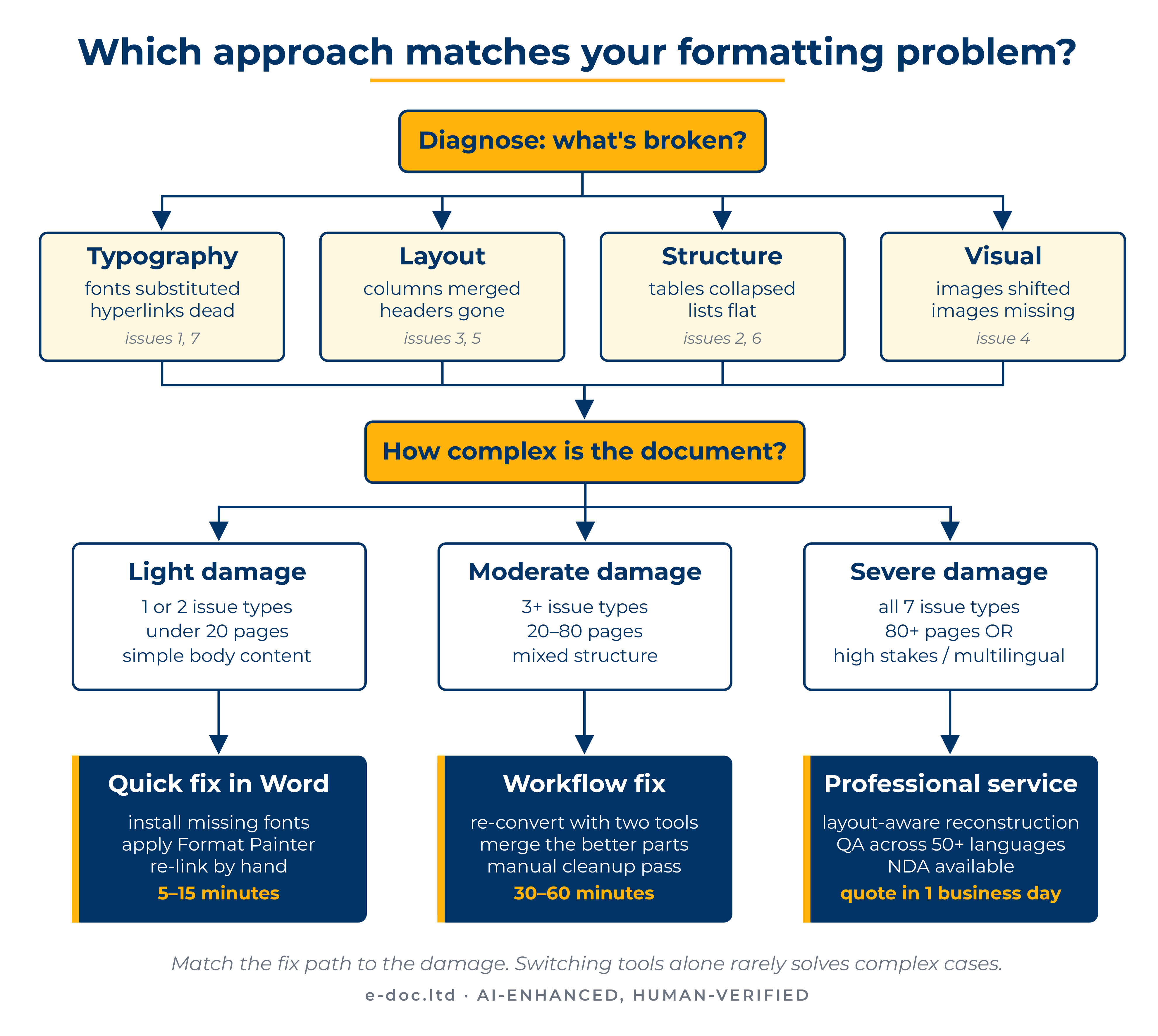
A note on tool-as-magic-bullet thinking: no converter solves all seven failure types at once on every document. Tool choice helps, but it does not replace diagnosis.
What Tools Actually Do Differently
The ten tools you find on the first SERP page mostly wrap one of three engines. Knowing which engine sits underneath tells you what to expect.
Adobe Acrobat (Adobe’s own engine)
Adobe invented PDF, so Acrobat parses PDFs better than anything else, especially modern ones it built itself. Strong on font fidelity, headers, footers, and image placement. Weak on borderless tables and very dense multi-column layouts. A Pro subscription unlocks the full conversion engine. Adobe’s official PDF-to-Word documentation walks through the export dialog and the underlying settings. The right starting point for digital PDFs that came out of Adobe products.
Microsoft Word’s built-in PDF import
Word opens PDFs as a native operation. The conversion engine is decent on simple body text and modest on everything else. Tables sometimes survive; multi-column layouts rarely do. The right starting point for one-off, single-column documents you already have Word for.
Online free converters (Smallpdf, iLovePDF, PDFgear, Convertio)
Most of these wrap one of two third-party engines: Solid Documents or ABBYY’s cloud API. Quality varies by tier and by load. Free tiers limit page count, file size, and sometimes accuracy. Privacy is a real concern: your file uploads to a server and may stay there. Avoid these for confidential documents.
Dedicated desktop tools (ABBYY FineReader, Wondershare PDFelement, Foxit, Nitro Pro)
These pay back their license cost on tables and multilingual content. ABBYY FineReader handles tables and 190+ languages substantially better than the free tier of any online tool, and it processes files locally without uploads. The right starting point when tables matter, when you handle confidential material, or when volume crosses 50 pages a month.
For a side-by-side comparison of tool performance per failure type, our forthcoming converter comparison post will benchmark the leading options on the same test PDFs. Until then, the rule stays simple: match the tool to the file, not the file to the tool.
For scanned PDFs, the tool calculus differs entirely; OCR engines dominate. See our OCR service overview for the multilingual and scanned cases.
When DIY Stops Making Sense
DIY conversion has a clear shape. Inside the shape, free or cheap tools work. Outside of it, the time you spend fighting the format costs more than a professional service. Four reliable thresholds mark the boundary.
Volume
Above 50 pages of complex layout, per-page cleanup time dominates everything. Forty minutes a page on 100 pages is sixty-six hours of work. At any professional hourly rate, sending the job out costs less.
Stakes
Legal contracts, technical specifications, regulatory filings, annual reports. Documents where one mismatched number, one shifted table row, or one lost footnote causes real damage. The accuracy bar here is not 95% but 100%, and the cost of mistakes runs asymmetrically. DIY tools rarely meet the bar without exhaustive QA.
Multilingual content
Documents combining Latin, Cyrillic, Arabic, Hebrew, or CJK scripts on the same pages need a different discipline. Most converters handle one language well and the rest poorly. Our team handles document conversion across 50+ languages, including right-to-left and CJK scripts, with script-specific layout rules and post-conversion QA.
Complex layouts that fight every converter
Some PDFs combine all seven failure modes at once: custom fonts, intricate tables, multi-column flows, embedded forms, dense graphics. We see this regularly with annual reports, marketing collateral, and academic journals. A skilled human rebuilds them from the source; a converter cannot.
The rough math: if your converted file would need four or more hours of cleanup to reach acceptable quality, professional conversion almost always costs less than your time. None of this means free tools work for nobody. They work on some files. Reading the file before reaching for a tool stays the discipline that saves time.
Frequently Asked Questions
Why does my PDF always lose tables when converted to Word?
PDFs do not store tables as structured objects. They draw lines and place text between them, and the converter has to infer the grid back. Simple bordered tables usually survive. Merged cells, spanning headers, multi-row banding, and tables without visible borders almost never do. For table-heavy documents, ABBYY FineReader handles reconstruction better than most online tools, and dedicated services rebuild them by hand.
Which converter preserves formatting best?
No single converter handles every case. The best tool to convert PDF to Word without losing formatting depends on the source file. Adobe Acrobat excels with Adobe-generated PDFs that include embedded fonts and structured layouts. Word’s built-in import wins on simple single-column documents you already have Word open for. ABBYY FineReader and similar desktop tools dominate on tables and multilingual content. Online free tools handle 80% of routine conversions and stumble on complex ones.
Can I keep custom fonts when converting PDF to Word?
Only if the fonts embed in the PDF and also install on the destination computer. If the font goes missing on either side, the converter substitutes a similar one – usually Calibri or Times New Roman – and your headings change shape. Embed fonts when generating the source PDF (most PDF exporters offer this option), and install the same fonts before converting on a different machine.
Why does Word’s built-in PDF import sometimes work better than online tools?
For simple, text-heavy, single-column documents, Word’s algorithm targets the case it sees most often. The result delivers reasonable body flow and recognized paragraphs. For anything with non-trivial structure (tables, columns, headers), Word’s algorithm runs out of headroom faster than dedicated converters. The rule of thumb: try Word first on simple docs; reach for a dedicated tool when Word stumbles.
Should I convert to .docx or .doc for better formatting?
Choose .docx, almost always. The newer XML-based format supports more layout features, embeds fonts more reliably, and exchanges cleanly with modern Word versions. Convert to .doc only when you need compatibility with Word 2003 or earlier – a rare case in 2026. Some online converters default to .doc; switch to .docx if your tool supports both.
Why are images shifting positions after conversion?
PDFs anchor images to absolute coordinates on a page. Word anchors images either to a paragraph (the image moves with the surrounding text) or to a page (the image stays put while text reflows around it). Converters must choose between the two, but often choose the wrong one. Fix it by selecting each image, opening the Layout Options anchor menu, and re-anchoring it to the paragraph it should follow.
Can I preserve hyperlinks when converting PDF to Word?
Sometimes. Adobe Acrobat preserves hyperlinks more reliably than free online tools. Word’s built-in import preserves visible URLs as clickable links but loses styled text links (where the link attaches to a phrase rather than to the URL itself). For documents where every link matters – bibliographies, technical references, sales decks – verify each link after conversion or hire a service that does.
When should I just hire someone to do this conversion for me?
When the math no longer adds up. Above 50 pages of complex layout, multilingual content, or stakes-heavy documents (legal, regulatory, financial), a professional service costs less than the hours you would spend cleaning up. The break-even point sits at roughly four hours of expected manual fix time. Below that, DIY usually wins. Above it, send it out.
The phrase “convert PDF to Word without losing formatting” is half-true. No conversion runs loss-free, but every conversion has a predictable failure profile that you can plan for. Diagnose the PDF, recognize the failure types, match the fix path to the document, and budget realistic cleanup time. When the math says professional, send it out. The clients who never run the math are the ones who lose the most time.