You try to convert password protected PDF to Word and the converter refuses to take the file, throws a “document is secured” error, or delivers a blank result. The frustrating part: you often have every right to work with the document – it came from your own legal team, a client, or a parent company. To convert a password protected PDF to Word reliably, you first need to know which of the two PDF password types you are dealing with, because each one blocks conversion in a different way and each has a different fix. This guide walks you through the diagnosis, three legitimate unlock routes that take about two minutes each, and the honest line where do-it-yourself methods stop working.
One rule before anything else: every method in this guide assumes you own the document, know its password, or have authorization from the owner. No reputable tool – and no reputable service, ours included – cracks passwords on documents you have no rights to. If a website promises to “hack” any locked PDF, treat that promise as the warning sign it is.
Why Password-Protected PDFs Refuse to Convert
When you try to convert a protected PDF to Word, the block you hit depends on how the file was secured – and PDF security is not one feature but two separate mechanisms that people constantly confuse. That confusion is why most “my PDF won’t convert” searches lead nowhere useful.
An open password (Adobe calls it a Document Open password, or user password) encrypts the entire file. Without the password, the content is mathematically unreadable – not hidden, encrypted. A converter cannot process what it cannot decrypt, so it either rejects the file outright or asks for the password before doing anything.
A permissions password (owner password) works differently. The file opens and displays normally, but internal flags tell PDF software: no printing, no copying, no content extraction. Conversion counts as content extraction, so a well-behaved converter checks the flags and declines – even though it can technically read every word on the page.
This distinction decides everything that follows. An open password requires the actual password – full stop. A permissions restriction, on the other hand, has several legitimate workarounds when you own the document, because the content itself was never encrypted. Get the type right and you convert protected PDF to Word in minutes; get it wrong and you waste an afternoon on tools that were never going to work.
First, Identify Which Password You Have
The diagnosis takes ten seconds:
- The file asks for a password before it opens at all – you have an open password. Nothing proceeds without it.
- The file opens and reads normally, but conversion, copying, or printing fails – you have a permissions password. In Adobe Acrobat or the free Acrobat Reader, open the file and check Document Properties, then the Security tab. It lists exactly which actions the document restricts.
- Both at once – some documents carry both passwords. Enter the open password first, then handle the permissions layer with the methods below.
One more check worth thirty seconds: look at the page content itself. If the text looks like a photograph of a page – you cannot select individual words even in preview – the document is also scanned, which adds an OCR step on top of the unlock. We cover that combination further down, and our guide to converting a scanned PDF to Word covers the OCR side in depth.
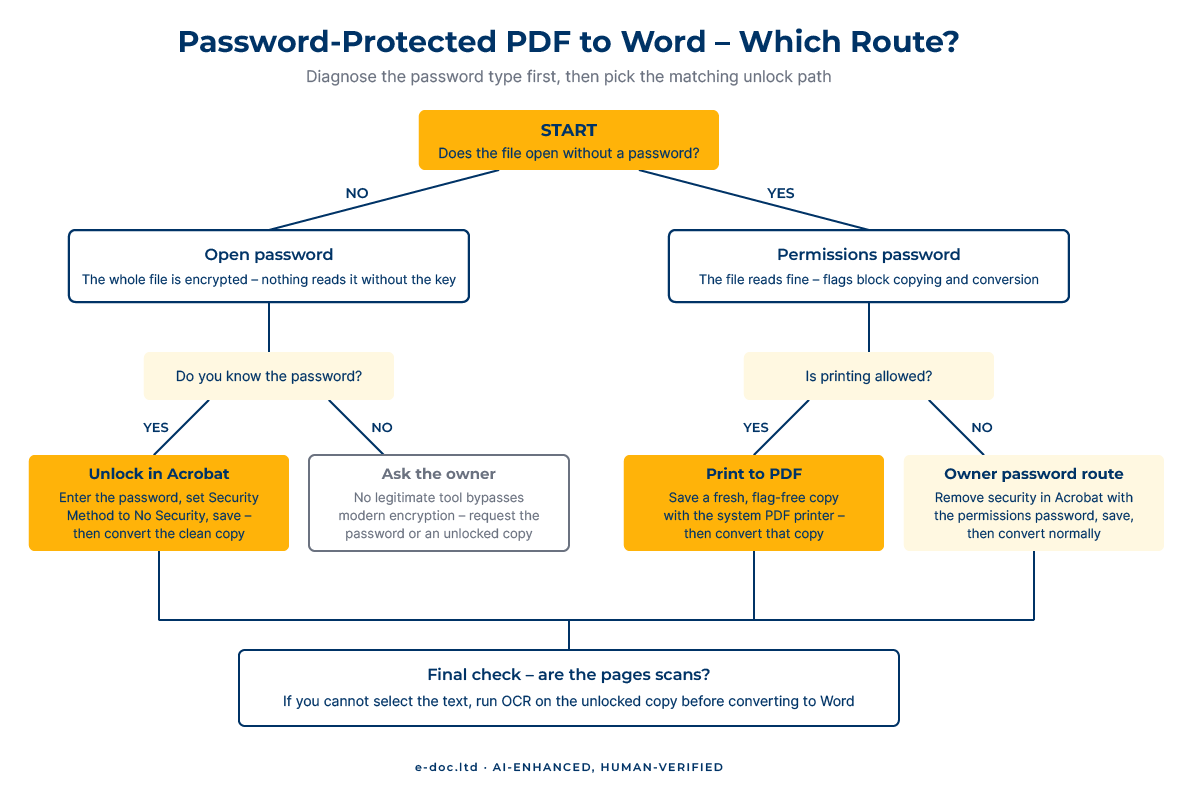
Method 1 – Unlock in Acrobat, Then Convert
The cleanest way to convert password protected PDF to Word when you know the password. Adobe Acrobat (the paid version – the free Reader opens protected files but cannot change their security) removes either password type in one dialog:
- Open the PDF in Acrobat and enter the password when prompted.
- Go to the security settings: open Document Properties, select the Security tab, and set the Security Method to “No Security”. Acrobat asks for the permissions password if the document has one.
- Save the file. You now have a normal, unrestricted PDF.
- Convert it with whatever workflow you prefer – Acrobat’s own Export to Word, Microsoft Word’s direct open, or any converter from our complete guide to converting PDF to Word.
Adobe documents the exact clicks for every Acrobat version in its official guide to removing passwords from PDFs – worth a look if your menu layout differs from the steps above.
Two limits to know. First, if the document uses server-based security (an enterprise rights-management policy), only the policy author or a server administrator can lift it – local Acrobat cannot. Second, removing security permanently strips the protection from that copy. For confidential material, unlock a working copy, convert it, and keep the protected original as the file of record.
Method 2 – The Print-to-PDF Route
No Acrobat subscription? You can still convert password protected PDF to Word for free. If the document opens (no open password, or you have entered it) and printing is allowed, every operating system gives you a free unlock path:
- Open the PDF in any viewer – a browser tab works fine.
- Print the document, but choose “Save as PDF” (or “Microsoft Print to PDF” on Windows) as the printer.
- The saved copy is a brand-new PDF with no security flags at all. Convert that copy to Word normally.
The catch, and it matters for anything you plan to edit heavily: printing to PDF re-renders the pages. On simple text documents the result converts fine. On documents with intricate layouts, embedded fonts, or live hyperlinks, the re-rendered copy loses internal structure – links go dead, text can turn into slightly heavier vector shapes, and the Word conversion downstream gets messier. If layout fidelity matters, use Method 1 instead, and read our guide on how to preserve the formatting during conversion before you commit hours to cleanup.
And obviously: if the permissions flags forbid printing, this route closes. That leaves Method 1 with the owner password – or a conversation with whoever set the protection.
Method 3 – Let Word Try the Direct Open
A route many people never test: recent versions of Microsoft Word open PDFs directly and convert them on the fly. With protected files, Word’s behavior depends on the password type:
- Open password: Word prompts for it, exactly like a PDF viewer. Enter the password and Word converts the decrypted content into an editable document.
- Permissions-only restriction: results vary. Word sometimes converts the file anyway, because the underlying content was never encrypted – and sometimes refuses, depending on the Word version and how the restriction was applied. It costs nothing to try: File, Open, select the PDF, and see what happens.
Treat this as a convenience shortcut, not a production workflow. Word’s built-in PDF conversion handles clean, text-based, single-column documents well and struggles with everything else – multi-column layouts, dense tables, footnotes. For a two-page letter, perfect. For a sixty-page agreement with numbered clauses and cross-references, expect cleanup.
What About Online PDF Unlockers?
Search for this topic and the first page fills with free web tools promising to unlock any PDF in seconds. Some are legitimate businesses handling the permissions-password case. Here is what the marketing pages skip.
Uploading means disclosing. A password-protected document is protected because someone decided its content needed protecting – contracts, financial statements, HR records, unpublished research. Uploading that file to an unknown server hands its content to a third party whose data handling you cannot verify. Free tools rarely publish meaningful retention policies; you have no idea how long your file lives on their infrastructure, in which jurisdiction, or who can read it. For anything under an NDA or containing personal data, that single upload can itself be a confidentiality breach – regardless of what the tool does afterward.
The technical reality check: any tool that removes protection without asking you for a password is only stripping permissions flags from files that were never encrypted. Against a real open password with modern encryption, honest tools fail – and tools that claim otherwise are selling something other than what they advertise. So the online unlocker at best duplicates what Method 2 already does for free, on your own machine, with zero disclosure.
Working with confidential protected documents?
We convert password-protected corporate files under NDA – complex layouts, tables, and multilingual content included – and can re-apply protection to the finished Word files on request.
When the PDF Is Scanned and Protected
The hardest common case: a locked file that is also a scan. Unlocking it – by any method above – gives you an unrestricted PDF whose pages are still images. No converter can extract editable text from pixels without optical character recognition, so the job becomes a two-stage pipeline:
- Stage 1 – remove the protection. Method 1 or 2, exactly as described. The scan changes nothing here.
- Stage 2 – run OCR on the unlocked copy. Acrobat’s built-in text recognition, ABBYY FineReader, or a professional OCR service for volume work, degraded scans, or multilingual content where automated recognition alone falls short.
Budget your expectations accordingly. Each stage introduces its own quality risks, and they multiply: a mediocre scan behind a password produces a mediocre Word file even after a flawless unlock. When we handle these projects, roughly all of the real effort sits in stage 2 – recognition and layout reconstruction – which is why “just unlock it first” is the easy half of the answer.
When DIY Stops Making Sense
The three methods above let you convert password protected PDF to Word in every individual, know-the-password case. Certain situations push past what any of them handle gracefully:
- Volume. Unlocking and converting five files is an errand. Doing it for a 300-document archive – each file individually protected, each needing verification after conversion – is a project with its own error rate.
- Protected and scanned together. As above: the unlock is trivial, the OCR and layout reconstruction are not, especially past 50 pages or outside English.
- Confidentiality obligations. If the documents sit under NDA or contain regulated personal data, “which free tool do I trust” is the wrong question. You need a documented chain of custody, not a browser upload.
- Re-protection requirements. Some workflows require the converted Word files to carry equivalent protection. Setting that up consistently across a batch is its own task.
- No password and no reachable owner. The honest answer: a legitimately encrypted file without its password stays closed. We decline these jobs, and so does every reputable provider. The path forward runs through the document’s owner, not through software.
None of these thresholds makes DIY wrong – for the everyday case of one file and a known password, two minutes in Acrobat settles it. The thresholds mark where the cost of your own time, or the risk to the content, outgrows the convenience.
Frequently Asked Questions
Can I convert a password-protected PDF to Word without knowing the password?
If the file has an open password – the kind that blocks the document from opening – no. The content is encrypted, and no legitimate tool bypasses modern PDF encryption. If the file opens freely and only restricts copying or printing (a permissions password), then yes: the print-to-PDF route or Acrobat with owner authorization removes the restriction, because the content itself was never encrypted.
Is it legal to remove a password from a PDF?
Removing protection from a document you own, created, or are authorized to use is a normal administrative action – Adobe builds the feature directly into Acrobat. Removing protection from someone else’s document without authorization can violate laws and contracts, and this guide does not cover ways to do it. When in doubt, ask the document’s owner for the password or an unlocked copy.
Why does my converter say the PDF is secured when it opens fine?
That is the classic permissions-password case. The document opens because viewing was never restricted, but internal flags forbid content extraction – and conversion is content extraction. Check Document Properties, Security tab, to see the exact restrictions, then use Method 1 or Method 2 from this guide.
Does removing the password damage the document’s formatting?
Method 1 (removing security in Acrobat) changes nothing about the content – the file is byte-for-byte the same document minus its security settings. Method 2 (print-to-PDF) re-renders the pages, which preserves the visual appearance but can flatten hyperlinks and internal structure. If you plan heavy editing after conversion, prefer Method 1.
Are free online PDF unlockers safe for business documents?
For anything confidential, we advise against them. Uploading a protected document to an unknown server discloses its content to a third party with unverifiable data handling. The permissions-only case they solve is the same case you can solve locally for free with print-to-PDF, without the disclosure.
What if the PDF is both password-protected and scanned?
Unlock first, then OCR. Removing the password takes two minutes with the methods in this guide; converting the scanned pages into editable Word text is the substantial part of the work and follows the same process as any scanned document – our separate guide to converting scanned PDFs to Word covers it step by step.
How do I convert a protected PDF to Word if it only blocks copying?
That is the permissions-password case, and it is the easy one. Because the content was never encrypted, you can convert protected PDF to Word without the owner password: print the file to a fresh PDF (which drops the restriction flags), or remove the security in Acrobat if you have the owner password, then convert the clean copy with any normal workflow.
Can Word open an encrypted PDF directly?
Yes, if you know the password. Recent Word versions prompt for the open password and then convert the document like any other PDF. Quality follows Word’s usual PDF conversion pattern: good on simple text documents, weaker on complex layouts and tables.
Can you re-protect the Word file after conversion?
Yes. Word supports its own password protection and editing restrictions, and for client projects we apply equivalent protection to converted files on request – so a locked PDF archive becomes a locked, editable Word archive rather than an unprotected copy of sensitive material.
The ability to convert password protected PDF to Word is less about finding a magic unlocker and more about a ten-second diagnosis: which password, which rights, which route. With the password in hand, any of the three methods gets you to an editable document in minutes – and for the cases where volume, scans, or confidentiality raise the stakes, a professional pipeline exists precisely so those documents never touch a random web server.